
The new 0.14.1 major update of AudioNodes is now out! This major update gives the Patcher and Nodes a UI facelift with new status LED indicators, introduces cut & paste, adds the new experimental Loop Subpatch Node, and packs the Piano Roll note menu with 13 new editing options. Also included are Timeline marker editing, reworked analyzer Nodes, an important UI lag fix, and more.
Priority Fixes
- Fixed several instances of a performance bug that would cause UI to become increasingly laggy over time, which only a restart would fix
Patcher & UI Facelift
The Patcher, Nodes, and some other UI in AudioNodes receive a facelift in this update.
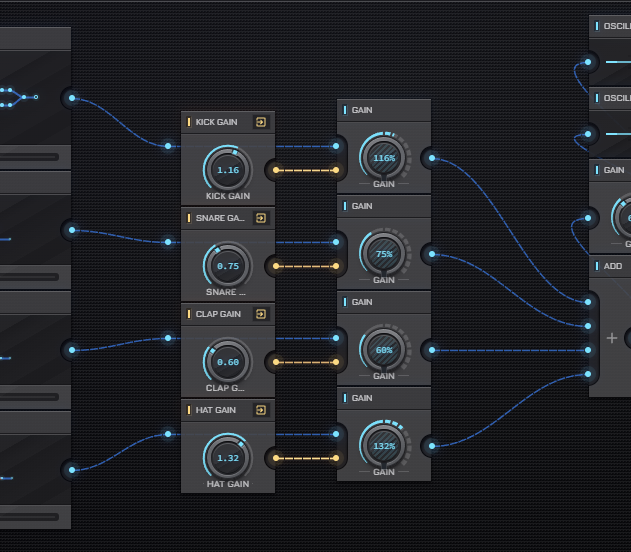
Node Sizing
All Nodes on the Patcher have been reduced by 2 pixels both horizontally and vertically, enabling stacking Nodes tightly next to each other with better visual results:
Status “LED”
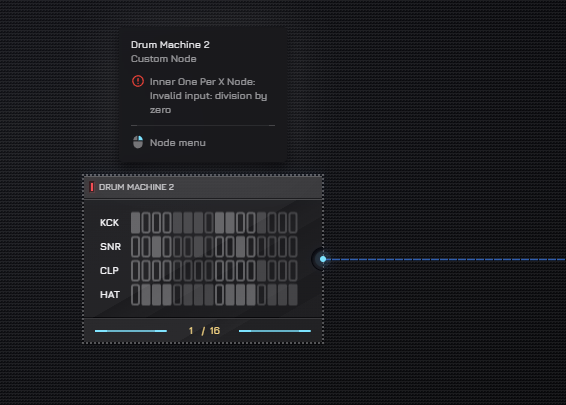
All header-like UI (top bar of Nodes on the Patcher, clips on the Timeline, etc.) receive a small indicator line resembling a small LED stripe. This is both to serve as a visual anchor, and to communicate status:
- Steady-on — nothing out of the ordinary needs your attention
- Blinking — something is loading or waiting, e.g. an audio file or a VST plugin loading
- Red blinking — something is wrong, e.g. a 1/X Node is doing a division by zero
- Steady-off — something is missing, e.g. an Audio File Node does not have a file loaded
In all cases except steady-on, the status is also indicated by a tooltip. The status appears on parent Subpatch Nodes as well:
Knobs
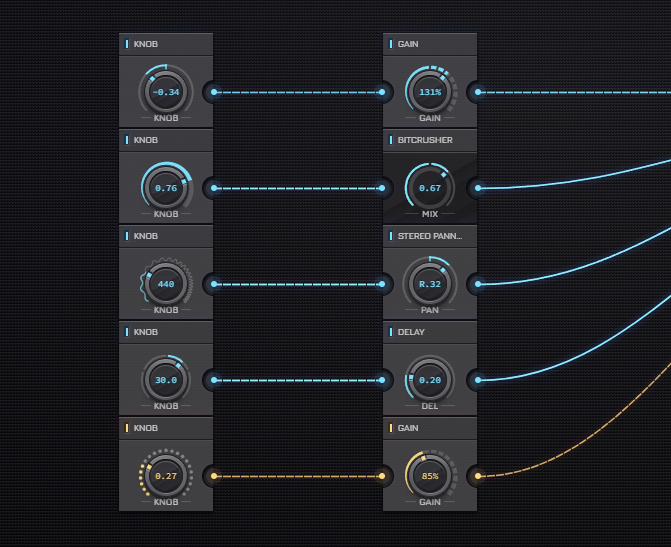
The various knobs on Patcher Nodes also received a small facelift and new unique UI variations, also available for use via the Knob Node itself:
Cut & Paste
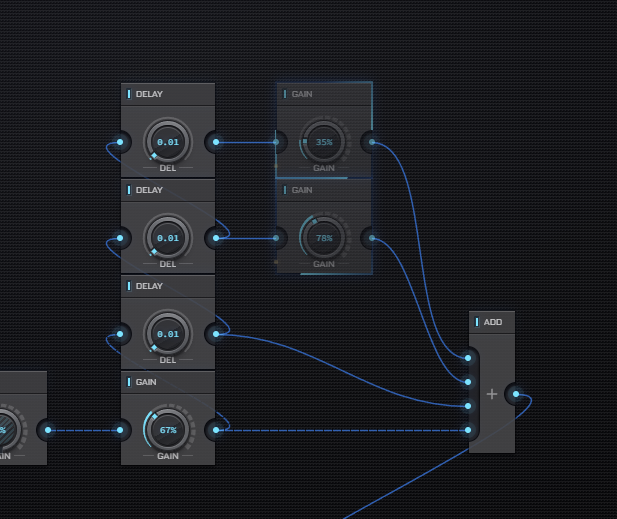
Added the ability to cut items and then paste them. This probably doesn’t need much introduction, but it’s basically the same as copy & pasting, except the original/cut item is deleted on paste.
Cut is generally available whenever copy/pasting also makes sense, that is:
- Nodes on the Patcher (removes connection to/from the cut Node upon its deletion)
- Clips on the Timeline
- Notes on the Piano Roll Node editor
It’s available from the same right click menus as copy, and via the hotkey Ctrl+X (or Cmd+X on Mac).
New Loop Subpatch Node
The Loop Subpatch Node is a new, experimental Node with a concept similar to the Poly Subpatch Node: it takes the inner subpatch, and automatically create copies of it (up to 64 as of now).
The Loop Subpatch Node designates a special loop input and loop output, and chains the connection through the subpatch copies, or subpatch iterations, in a loop:
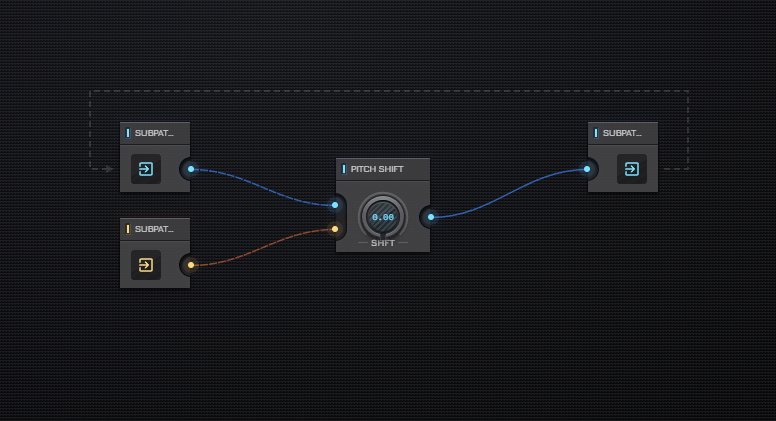
The Loop Subpatch Node is heavily a work in progress, and will see more iteration and improvements over coming updates.
Node Changes
Allpass Filter Node
- Frequency-Control Input and Sharpness-Control Input now display their expected input value ranges in their tooltips
Audio Destination Node
- Fixed a rare bug where the Audio Destination Node could be stuck in a state where it wouldn’t output anything, without any indication as to why
- A selected output device that is no longer connected is now indicated by the standard LED status — also shown on parent Subpatch Nodes
Audio File Node
- The Audio File Node once again shows the file name on the Timeline directly
- Empty, loading, and file-load error states are now indicated by the standard LED status — also shown on parent Subpatch Nodes
Audio File Param Node
- Empty and loading states are now indicated by the standard LED status — also shown on parent Subpatch Nodes
Audio Input Node
- Input access errors, a pending access request, and a selected input device that is no longer connected are now indicated by the standard LED status — also shown on parent Subpatch Nodes
Bandpass Filter Node
- Frequency-Control Input and Sharpness-Control Input now display their expected input value ranges in their tooltips
Circle Oscilloscope Node
- Added Gain setting for scaling the waveform visualization
- Added Rotation setting — offsets the starting angle of the circular waveform
Convolver (Reverb) Node
- An impulse response that is loading or being generated is now indicated by the standard LED status — also shown on parent Subpatch Nodes
Delay Node
- An unmet minimum delay time requirement in a Delay Node feedback loop is now indicated by the standard LED status — also shown on parent Subpatch Nodes
Envelope Node
- An envelope with no control points, or one that is not on the Timeline, is now indicated by the standard LED status
Envelope Pattern Node
- An envelope with no control points is now indicated by the standard LED status
Feedback Visualizer Node
- Fixed the Theme setting not applying to the panel preview glow — now correctly reflects the selected theme
Highpass Filter Node
- Frequency-Control Input and Resonance-Control Input now display their expected input value ranges in their tooltips
Highshelf Filter Node
- Frequency-Control Input and Gain-Control Input now display their expected input value ranges in their tooltips
Knob Node
- Added 2 new visual settings to customize the knob’s appearance even further:
- Scale — sets the shape of the knob’s visual track and fill on the outside
- Appearance — toggles between the default/physical appearance and a flat appearance
- Output now once again appears with control (orange) color when not input-controlled
Log Node
- A non-positive input is now indicated by the standard LED status — also shown on parent Subpatch Nodes
Lowpass Filter Node
- Frequency-Control Input and Resonance-Control Input now display their expected input value ranges in their tooltips
Lowshelf Filter Node
- Frequency-Control Input and Gain-Control Input now display their expected input value ranges in their tooltips
MIDI Keyboard Node & MIDI Knob Node
- No MIDI device selected, or a selected device that is no longer connected, is now indicated by the standard LED status — also shown on parent Subpatch Nodes
Notch Filter Node
- Frequency-Control Input and Sharpness-Control Input now display their expected input value ranges in their tooltips
One Per X Node
- Division by zero errors are now indicated by the standard LED status — also shown on parent Subpatch Nodes
Oscilloscope Node
- Added horizontal/vertical Orientation
- Added Gain setting for scaling the waveform visualization
- Added Trigger setting – synchronizes the display to zero-crossing points for a stable view of periodic signals
- Added Line Thickness setting
Peaking Filter Node
- Frequency-Control Input, Sharpness-Control Input, and Gain-Control Input now display their expected input value ranges in their tooltips
Piano Roll Node
- Added 13 new note editing options to the note menu (right click on desktop or tap on touch devices):
- Cut — puts the selected notes on the clipboard and removes them once pasted (
Ctrl+X) - Legato — extends each selected note to the start of the note that follows it
- Invert Pitch — mirrors the selected notes around their pitch midpoint, flipping the melodic contour
- Invert Selection — selects every unselected note and deselects the current selection
- Select All Following — extends the selection to every note starting at or after the last selected note
- Overlap Correction — trims each selected note so it no longer overlaps the next note at the same pitch
- Split at Playhead — cuts the selected notes in two at the playhead position
- Transpose — shifts the selected notes by a number of semitones, set in a dedicated settings dialog
- Set Fixed Length — gives every selected note the same length, set in a dedicated settings dialog
- Quantize Note Length — snaps the length of the selected notes to the grid, set in a dedicated settings dialog
- Set Velocity — gives every selected note the same velocity, set in a dedicated settings dialog
- Humanize — loosens up mechanical-sounding notes with a random timing and velocity spread, set in a dedicated settings dialog
- Strum — offsets the notes of a chord one after another, with amount and direction set in a dedicated settings dialog
- Cut — puts the selected notes on the clipboard and removes them once pasted (
- Added an Edit Markers option — a searchable, editable list of all markers in the current pattern, accessible from the editor’s settings menu
- Copying (
Ctrl+C) and pasting (Ctrl+V) are now properly disabled while the editor is locked - A Piano Roll Node with no notes is now indicated by the standard LED status
Poly Subpatch Node
- The loading and error status of its inner Nodes, updating voices, and an empty subpatch are now indicated by the standard LED status
Rendered Subpatch Node
- The loading and error status of its inner Nodes, rendering, and an empty or silent render are now indicated by the standard LED status
Sampler Node
- Empty and sample-loading states are now indicated by the standard LED status — also shown on parent Subpatch Nodes
Spectogram Node
- Added horizontal/vertical Orientation
- Added Resolution, Smoothing, Min dB, Max dB, and Contrast settings
Spectrum Analyzer Node
- Added horizontal/vertical Orientation
- Added Bar Count, Smoothing, Min dB, Max dB, and Contrast settings
- Added Peak Hold – displays decaying peak markers above the bars
- Added Min Frequency, Max Frequency, and Frequency Curve settings
Subpatch Node
- The loading and error status of its inner Nodes, as well as an empty subpatch, are now indicated by the standard LED status
Subpatch Signal Output Node
- An output that is fed but only active during playback, inside a Rendered Subpatch Node, is now indicated by the standard LED status — also shown on parent Subpatch Nodes
Velocity Envelope Node
- An envelope with no control points, or one that is not on the Timeline, is now indicated by the standard LED status
VST Plugin Node
- Empty, loading, and unavailable plugin states are now indicated by the standard LED status — also shown on parent Subpatch Nodes
- Fixed a bug on the desktop version where dragging a VST plugin onto the Patcher would create the VST Plugin Node, but the plugin would never load
Timeline
- Added an Edit Markers dialog to the Timeline — a searchable, editable list of all timeline markers with support for renaming, repositioning, and bulk deletion, available from the Timeline’s “…” menu
- Fixed a bug where various Timeline-specific dialogs would not appear with a Piano Roll Node open instead of the Patcher
- Added new hotkey options:
M— opens the Add Marker dialog pre-filled at the current playhead position, snapping to the nearest beat when snap to grid is onShift+B— jump the playhead to the previous markerShift+N— jump the playhead to the next marker
Misc Changes & Fixes
- Replaced several dropdown selectors with a multiway switch to save a click (the UI of this new widget is still a work in progress)
- Fixed a duplicate 44.1 kHz entry in the Export dialog’s Sample Rate dropdown – the obsolete 44056 Hz sample rate (a Sony PCM-1600 relic from the 1970s) formatted identically to 44100 Hz and has been removed
- Opening a project and then immediately restarting AudioNodes, without making any changes, will no longer cause the quicksave to turn up empty after restart
- Fixed a bug that would cause moving objects on the Custom Node Designer to not autosave properly unless you also made another chenge afterwards
- Fixed a bug on the desktop version where opening a project by dragging its file into AudioNodes would fail to load the audio files the project links to
- Fixed a bug on the desktop version where audio files dragged into AudioNodes were always embedded into the project, with no option to keep them as links to the real files